Skills give ChatCut’s AI agent a reusable way to approach an editing task. You can use a Skill published by ChatCut or a listed creator, attach one of your own Skills, or turn a successful editing process into a personal Skill that you can use in other projects.
What is a Skill?
A Skill is reusable workflow guidance for the AI agent. It describes how the agent should handle a type of task, including the steps, priorities, and decisions that worked well before.
A Skill isn’t a media file or a finished edit. It works together with your prompt: the Skill provides the method, and your prompt describes what you want to do in the current project.
ChatCut organizes Skills into two groups:
- Featured contains Skills from ChatCut Official and listed creators.
- My Skills contains the editing workflows you’ve saved for your own use. These Skills are available across your ChatCut projects.
Where do I find Skills?
You can open Skills from the AI composer in the editor using the book icon. The compact menu is useful when you already know what you need, while the marketplace gives you more room to browse and preview available workflows.
- Open a project and go to the AI composer.
- Select the book icon labeled Skills below the message field.
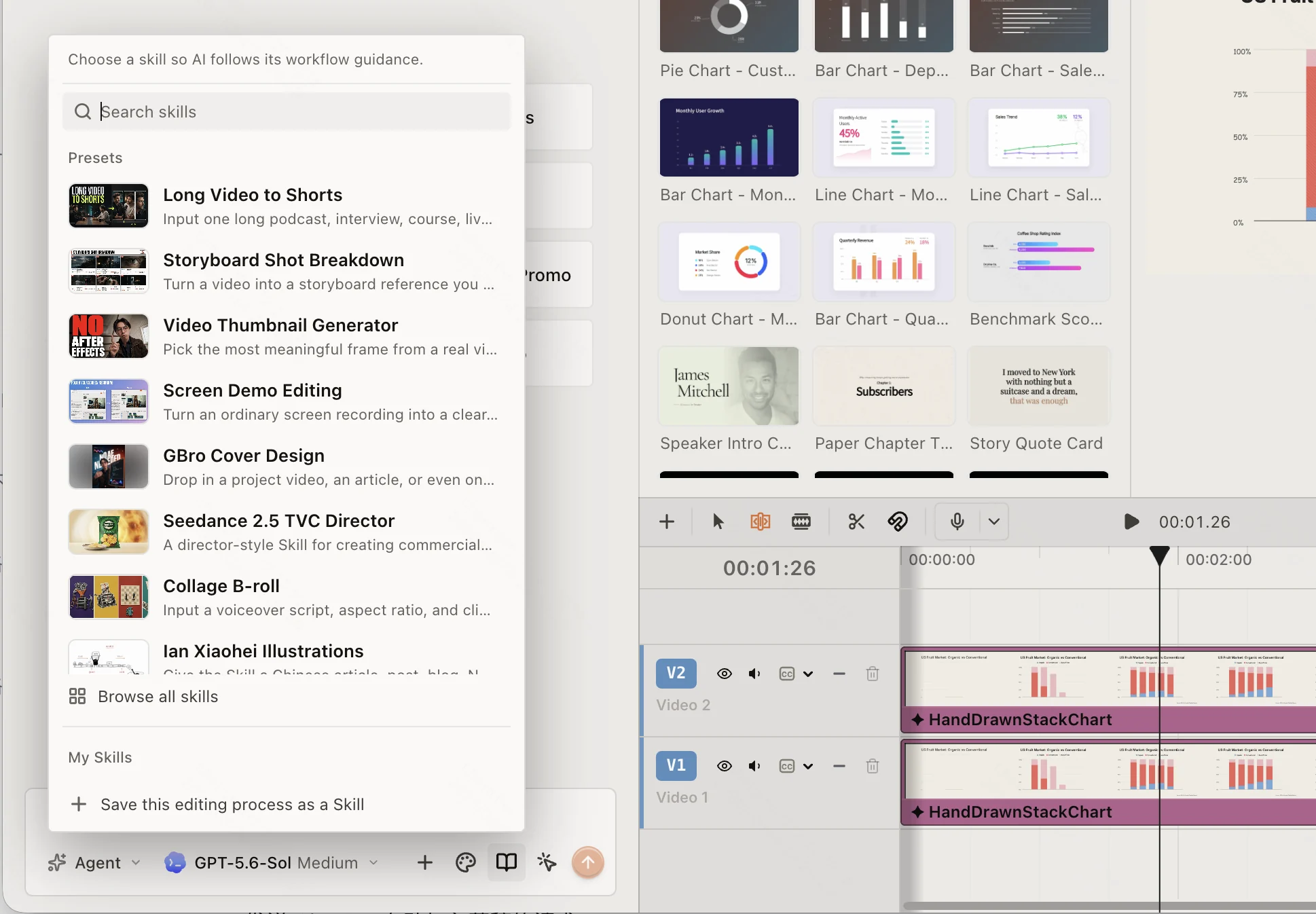
- Browse Featured and My Skills, or enter a name or task in Search skills.
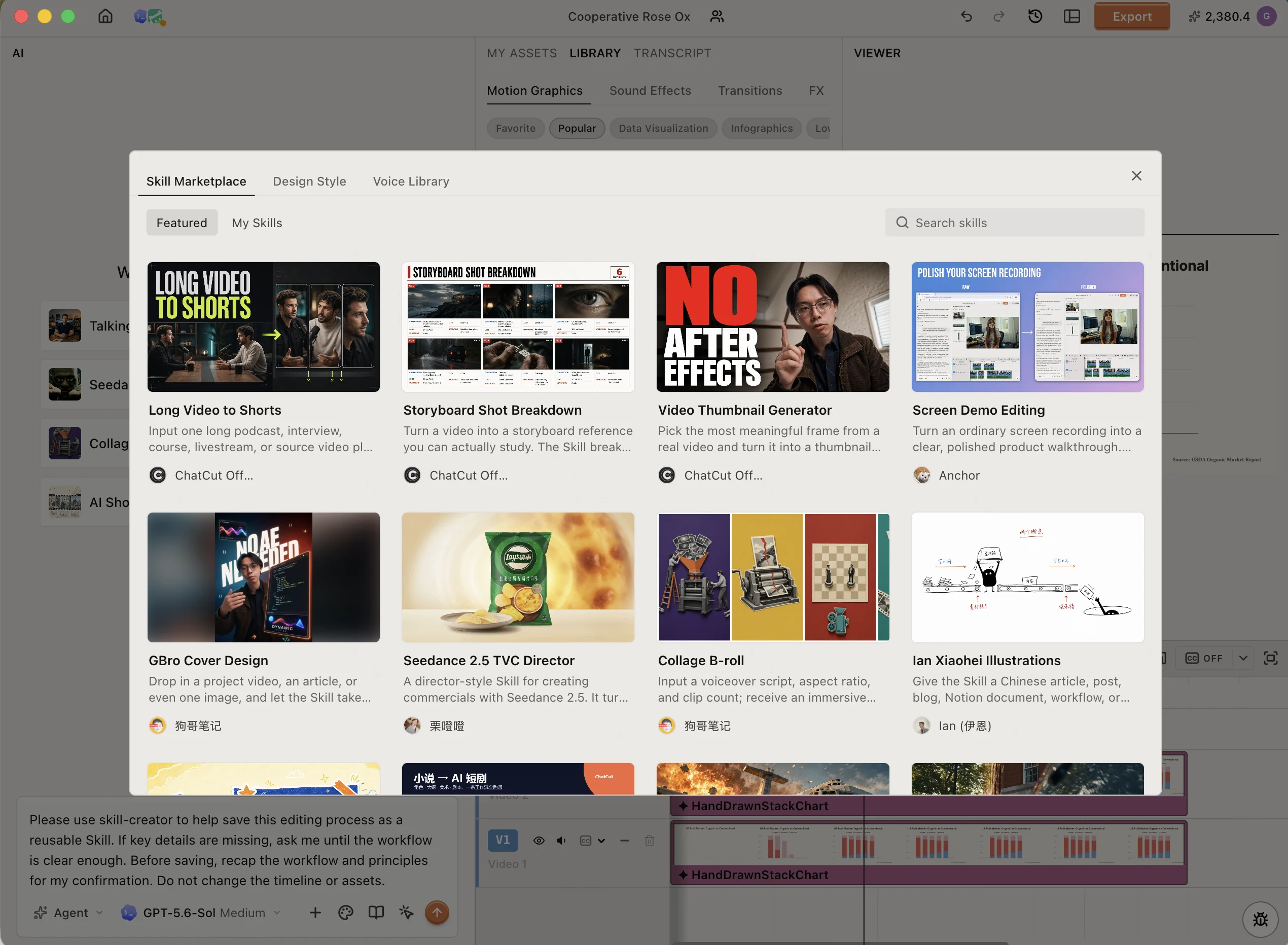
- To see more Skills, select Browse all skills to open Skill Marketplace.
- In the marketplace, select a Skill to review its description, author, and available previews.
How do I use a Skill?
Selecting a Skill adds it to your AI draft. You can then describe the result you want, attach any relevant media, and send the request.
- Open Skills from the AI composer.
- Select a Skill from Featured or My Skills. You can also open Skill Marketplace and select Use this Skill.
- Confirm that the Skill appears as an attachment in the AI draft.
- Write what you want the agent to do in the current project.
- Add any media references the task needs, then send the message.
The selected Skill guides that request. Attach it again when you want the agent to follow the same workflow in a later request.
How do I save an editing process as a Skill?
Save a process after you and the agent have worked out a repeatable approach. ChatCut starts a guided conversation so the resulting Skill captures the workflow clearly before it is saved.
- Complete or identify the editing process you want to reuse.
- Open Skills from the AI composer.
- Select Save this editing process as a Skill.
- Send the request that ChatCut adds to your draft.
- Answer any questions the agent asks about missing steps, constraints, or preferences.
- Review the agent’s summary of the workflow and its guiding principles.
- Confirm the summary to save the Skill.
- Open Skills and find the saved workflow under My Skills.
The save flow is designed to document the process without changing your timeline or assets. Once saved, the Skill is available from My Skills in your other ChatCut projects.
How do I manage My Skills?
You can rename or delete the personal Skills shown in the compact Skills menu.
- Open Skills from the AI composer.
- Find the Skill under My Skills.
- Open the three-dot menu beside the Skill.
- Select Rename to change its name, or select Delete to remove it from My Skills.
Deleting a Skill removes the saved workflow from your personal library. ChatCut asks you to confirm before it is deleted.
When should I use a Skill instead of a regular prompt?
Use a regular prompt for a one-off instruction, such as shortening one clip or changing one title. Use a Skill when the task benefits from a repeatable method, such as a recurring talking-head edit, a consistent product promo workflow, or a review process with the same checks each time.
You usually get the clearest result by combining both: attach the Skill that contains the reusable method, then write a prompt with the goal and project-specific details.
For more about working with the agent and your timeline, see the AI Panel Overview and Editor Overview.