The AI panel is where you describe a task, give ChatCut precise project context, approve generation, and follow the agent’s work. It normally appears on the left side of the editor.
How do I open the AI panel?
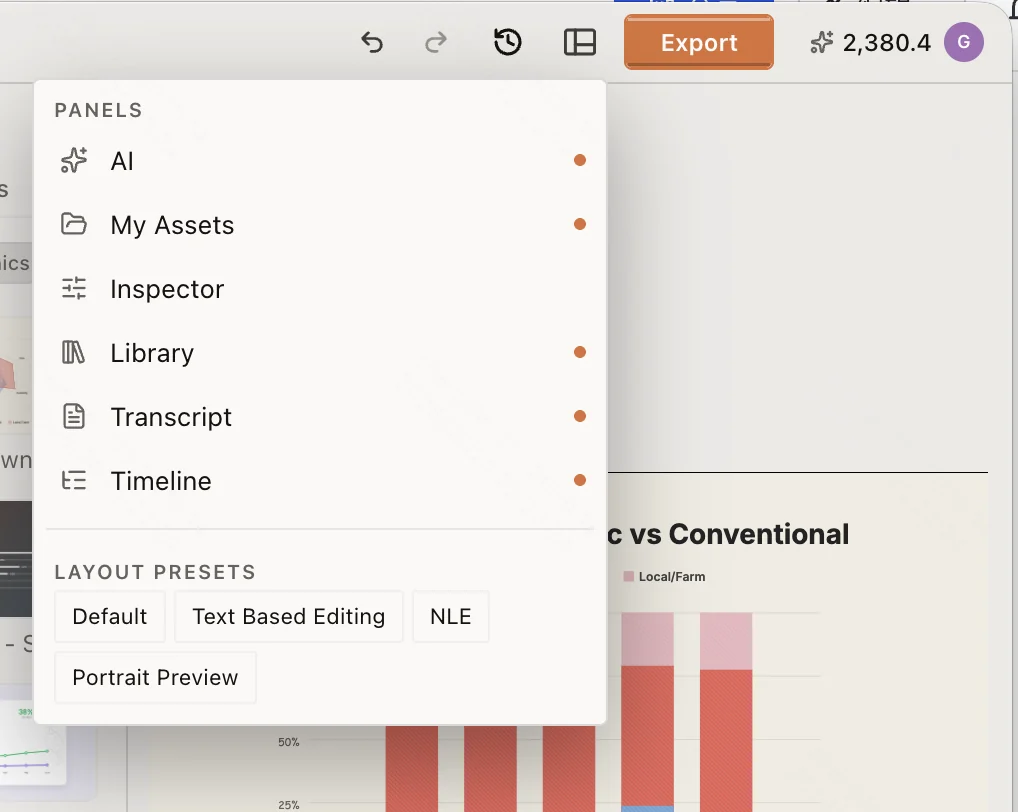
If the panel is hidden, open the Workspace menu in the top bar and enable AI. Choose Reset to default from the same menu if several panels have moved or disappeared.
The panel has three main regions:
- Conversation: your requests, agent replies, progress, questions, and generation confirmations.
- Prompt composer: the field at the bottom where you enter the next task and add context.
- Composer controls: the mode, settings, attachments, reusable context, Selection Mode, and Send or Stop button.
Start from a workflow card
In a new or empty conversation, ChatCut may show workflow cards above the Prompt composer. Select a card to fill the composer with a starter prompt. Review it, add the requested inputs, and then select Send. Selecting the card alone does not start a task.
What can I do in the prompt composer?
The controls below the composer change the current draft:
- Select Agent / Video Gen to switch how the next request runs.
- Select Agent settings to change Agent behavior and generation approval preferences.
- Select Upload (+) to attach a file to this request.
- Select the video model, voice, Design Style, or Skill controls to add that context to the draft.
- Select Selection Mode to add a precise
@reference from the canvas, Timeline, My Assets, or Transcript. - Select Send to submit the draft. While a task can still be cancelled, the button changes to Stop.
Adding context does not run the task. Describe the result you want, check the attached context, and then send the request. See Prompt Composer for the full input flow. Voice and video-model controls are covered under Voice Library and Voice Cloning and Video Generation Models.
Choose Agent or Video Gen
Select the current mode name in the lower-left of the composer, then choose Agent or Video Gen.
- Use Agent when ChatCut should understand project context, edit the Timeline, or complete several connected steps.
- Use Video Gen when you want to configure and submit one video-generation job directly.
Switching modes changes the composer, not the active Timeline. Check the draft again after switching because inputs that do not apply to the new mode may be removed.
Where do results appear?
Agent progress and questions appear in the conversation. Imported and generated media appears in My Assets. Timeline edits appear in the active Timeline and can be reviewed in the Viewer. A task can therefore finish with a new asset, a changed timeline, a response in the conversation, or a combination of all three.
Continue to Prompt Composer for sending context or Selection Mode for precise references.