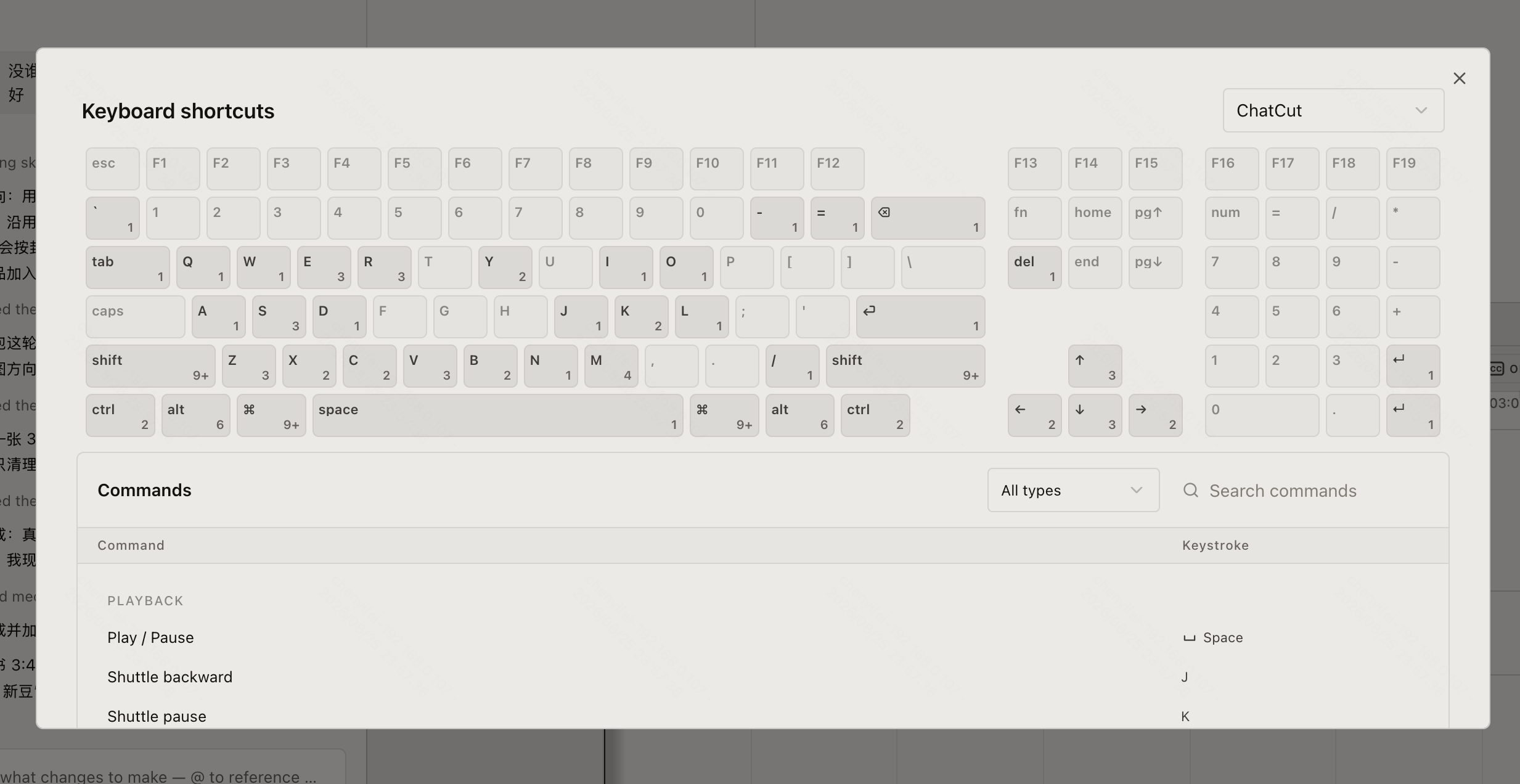
Open Keyboard shortcuts when you want to look up the active binding, switch to an editor-style preset, or customize a command. The dialog changes the editor’s actual key map; the reference table shows only the default ChatCut preset.
Open and find shortcuts
Open the avatar menu in the editor’s top-right corner and select Keyboard shortcuts. You can also press Mod+Alt+K, where Mod is Cmd on macOS and Ctrl on Windows/Linux.
- Select a key in the keyboard map: show only commands that use that key. Clear the key filter to show all commands again.
- Open All types: filter commands by groups such as Playback, Edit, Navigation, Markers, View, or Timeline.
- Enter a name in Search commands: find commands by text.
Choose a preset
Open the preset picker in the top-right and choose ChatCut, Premiere Pro, DaVinci Resolve, Final Cut Pro, CapCut, or KWL. The command list switches to that preset’s bindings; commands the preset does not override keep their base bindings.
Customize and save
- Select the binding beside a command: enter recording mode.
- Press a new key combination: if there is no conflict, it replaces the current binding immediately. Press Esc to cancel.
- If ChatCut shows a conflict or browser-reserved warning, choose another combination or confirm an allowed override.
- Select Reset to default beside an edited command: restore that command’s binding from the active preset.
- Select Save as new preset…: name the full setup and save it under Your presets.
Signed-in shortcut settings sync to the account. Signed-out settings stay in that browser; the first sign-in can copy local preferences when the account has none.
For the default table, see Keyboard Shortcut Reference.