Design Styles keep AI-generated motion graphics visually consistent. A style can include colors, fonts, logos, reference images, and written guidance. Apply a Featured style as-is, customize it into a personal copy, or build your own style in My Styles.
Where do I find Design Styles?
The quickest entry is below the AI message field in the editor.
- Open a project and go to the AI composer.
- Select the palette icon labeled Design Style.
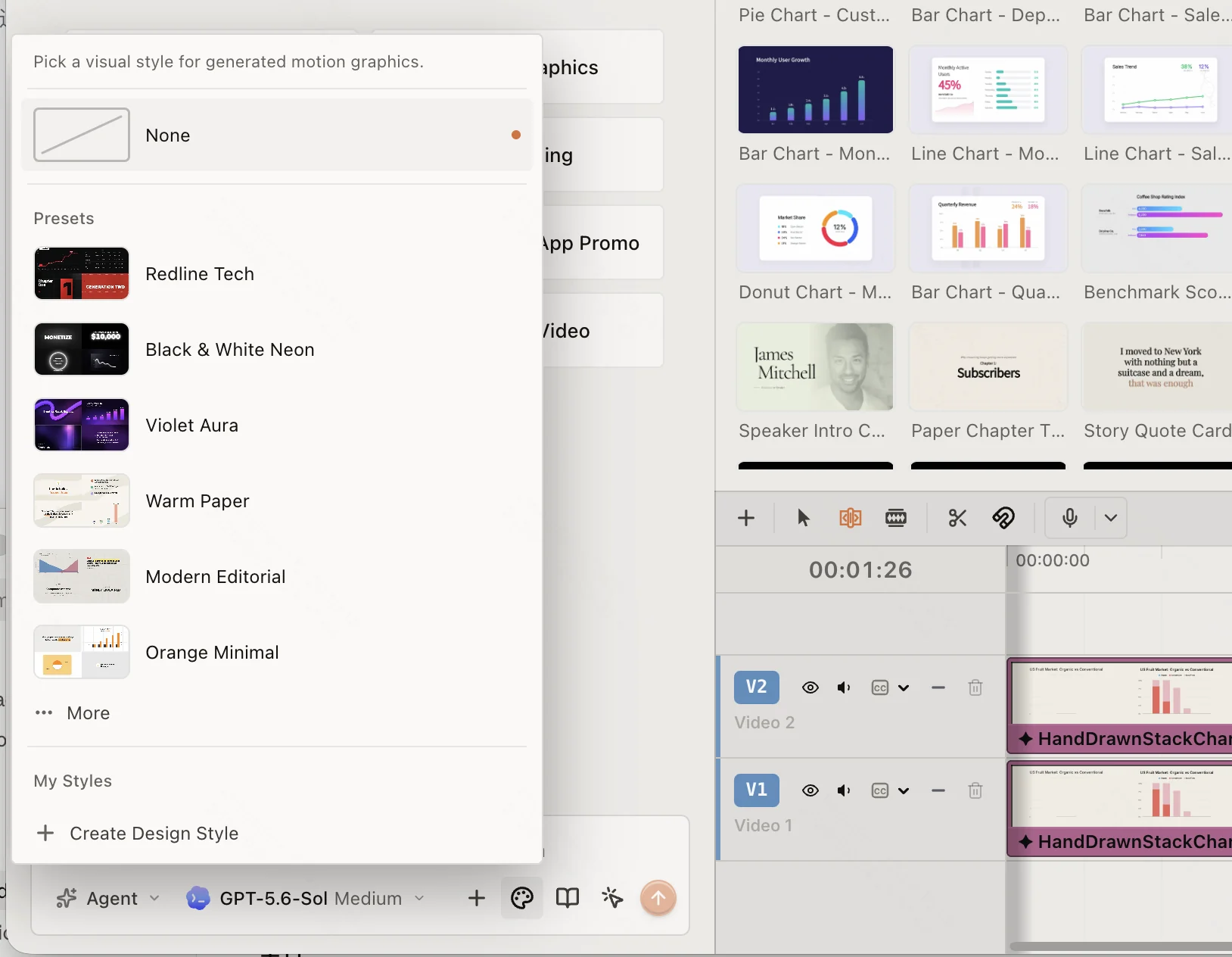
- Choose a style under Featured, or create a personal style in My Styles.
- Select Browse all styles to open the full Design Style library.
The full library is also available in the Gen Kit window. Its tabs are Skill Marketplace, Design Style, and Voice Library.
How do I apply a style?
Select a style in the compact menu, or open Browse all styles and select Apply on a style card. The selected style is saved to the current project and guides subsequent AI-generated motion graphics.
To stop using a style, reopen Design Style and select None. Choosing another style replaces the current selection; it does not restyle clips that have already been generated.
When you send an AI request, still describe the actual content and motion you want. The style supplies the visual system, while your prompt supplies the project-specific goal.
How do I customize a Featured style?
Featured styles are shared presets and cannot be overwritten. Customizing one creates a personal copy.
- Open Design Style, then select Browse all styles.
- Stay on Featured and find a preset.
- Select Customize style.
- Edit the name, cover, Colors, Fonts, Logos, Images, or Style Guide.
- Select Save.
The copy appears in My Styles and is automatically applied to the current project. The original Featured style remains unchanged.
How do I create or edit My Styles?
To create a style from scratch, open Design Style and select Create Design Style. Add the visual assets and written rules the agent should follow, then select Save.
To update a personal style:
- Open Browse all styles and switch to My Styles.
- Find the style and select Edit style.
- Make your changes and select Save.
You can also find a personal style in the compact Design Style menu, open its three-dot menu, and choose the available edit or delete action. Deleting a personal style removes it from My Styles; it does not remove motion graphics that were already generated with that style.
What should go into a style?
- Colors: the brand or project palette the agent should favor.
- Fonts: typefaces to use in generated layouts.
- Logos: marks that may be included when appropriate.
- Images: visual references for texture, composition, or art direction.
- Style Guide: plain-language rules such as spacing, typography hierarchy, animation feel, and things to avoid.
Use a Design Style for reusable visual direction. Use a prompt for instructions that only apply to one request.