The best AI video editor depends completely on the type of video you are editing. A creator editing 45-minute YouTube vlogs needs a different tool than a marketer producing 15-second TikTok ads or a podcast producer converting audio into video. Most roundups list the same tools without addressing that distinction. We have tested and compiled the list of best AI tools for video editing based on different use cases, formats, workflows, and budgets.
According to Sellerscommerce, over 60% of marketers using AI report that text-to-video platforms cut content creation time by more than half, and AI video tools reduce production costs by up to 80%. This brings time-to-market from three weeks down to 24 hours. No single tool drives all of that, but the right one for your workflow gets you closer to it.
Key Takeaways
-
The “best” AI video editor is a workflow question, not a universal ranking, depending on format, platform, and budget
-
AI video editing in 2026 covers a wide range: from silence removal and auto-captions at the lighter end to fully agentic editing at the other
-
Free tiers vary significantly; some are genuinely usable, others exist primarily to push you toward a paid plan
-
Browser-based tools dominate short-form and social content; desktop apps still lead for professional AI video editing and long-form work
-
For podcast video, the recording step matters as much as the editing step; a poor source file limits what any editor can do
-
Agentic editing is a distinct category from AI-assisted editing: one automates tasks inside a timeline, the other executes a full edit from a plain-language instruction
What Is an AI Video Editor?
An AI video editor is software that uses artificial intelligence to automate or assist with video editing tasks, including cutting, captioning, reframing, noise removal, and in some cases generating entirely new footage from a text prompt.
In 2026, “AI” in video editing covers a wide range of capabilities. At the lighter end, it means auto-captions and silence removal. At the more advanced end, it means agentic editing, where you give the tool a plain-language instruction and it executes a multi-step edit autonomously without you touching a timeline..
How We Evaluated These Tools
We ran each tool through the same source material and evaluated on:
-
Time to first usable export: how long from upload to a publishable output
-
Caption accuracy: measured against a manual transcript
-
AI cut quality: whether automated cuts required significant manual correction
-
Free tier honesty: whether the free tier is genuinely usable or exists to push you to paid
-
Output file quality: resolution, compression, and format compatibility with downstream tools
Tools built for specific workflows (Runway, Synthesia, Topaz Video AI) were tested against use-case-appropriate material rather than the standard recording.
What to Look for in an AI Video Editor
-
Automation depth: how much the tool handles without manual input, and whether that automation is accurate enough to trust
-
Export options: MP4 for direct publish, XML for NLE import, support for vertical and horizontal formats
-
Free tier limitations: whether the free tier adds a watermark, limits export resolution, or locks out the AI features you actually need
-
Platform: browser-based tools work anywhere; desktop apps are faster on demanding projects but require installation
-
Learning curve: timeline-based editors take longer to learn; transcript-based and conversational editors have a much shorter ramp
-
Integration: whether the tool connects to software you already use or requires a separate workflow step
-
Generative vs. editing-focused: Runway and InVideo AI generate footage; every other tool on this list edits footage you already have
Best AI Video Editors at a Glance
The 15 AI tools for video editing below cover six workflows: video editing, audio/podcast, social content, professional post-production, generative AI, and beginners.
| Tool | Best For | Platform | Free Tier | Starting Price |
|---|---|---|---|---|
| ChatCut | Agentic video editing | Browser | Yes (beta) | Free |
| Descript | Long-form, transcript editing | Mac, Windows, Browser | Yes | $24/mo |
| CapCut | Reels, short-form social | Mobile, Desktop, Browser | Yes | $9.99/mo |
| VEED | YouTube, team collaboration | Browser | Yes | $18/mo |
| Adobe Premiere Pro | Professional editing | Mac, Windows | No | $57.99/mo |
| DaVinci Resolve | Color grading, professional | Mac, Windows, Linux | Yes | Free / $295 one-time |
| Final Cut Pro | Mac editing | Mac only | No | $299.99 one-time |
| Runway | Generative AI, ad creative | Browser | Yes | $15/mo |
| OpusClip | YouTube repurposing, Shorts | Browser | Yes | $15/mo |
| Wondershare Filmora | Beginners | Mac, Windows, Mobile | Yes | $79.99/yr |
| InVideo AI | TikTok ads, script-to-video | Browser | Yes | $25/mo |
| Kapwing | Quick edits, meme content | Browser | Yes | $16/mo |
| Synthesia | AI avatar video | Browser | Yes | $29/mo |
| Topaz Video AI | Enhancement, upscaling | Mac, Windows | No | $299 one-time |
| Riverside | Podcast video recording | Browser | Yes | $15/mo |
15 Best AI Video Editors in 2026
The best AI video editing tools in 2026 are organized below by use case. Each category covers the tools that fit that specific workflow, with the features, pricing, and tradeoffs you must know to make the right call.
Best AI Video Editor for YouTube Creators
YouTube creators typically manage two separate editing tasks: cutting the main upload and repurposing it into YouTube Shorts. OpusClip and VEED split those jobs: one handles repurposing, the other handles the full edit.
1. OpusClip
What it is: OpusClip takes a long video and automatically identifies the most engaging moments, cuts them into short clips, adds captions, and scores them for virality based on pacing, engagement hooks, and topic relevance.
Key AI features:
-
AI curation of the strongest clips from long-form video
-
Virality score based on engagement signals
-
Auto-captions with word-by-word highlighting
-
Auto-reframe for vertical formats
-
Chapter generation for full-length videos
-
Speaker identification for multi-person content
Pros:
-
Cuts the time to repurpose a YouTube video into multiple Shorts from hours to minutes
-
Virality scoring gives a useful starting point for deciding which clips to post
-
Chapter generation adds value to the original upload, not just the clips
Cons:
-
Free tier limits clip count per month
-
AI curation misses context; the highest-scoring clip isn’t always the most relevant to your audience
-
Output clips need a manual review pass before publishing
What We Liked Best: Virality scoring gives you a concrete starting point for deciding which clips are worth your time to refine and post. It’s not always right, but it’s faster than watching the full recording back yourself.
Best for: YouTube creators who produce regular long-form content and need to maintain a Shorts publishing schedule without doubling their editing time.
Pricing: Free (limited), Starter $15/month, Pro $29/month.
2. VEED
What it is: VEED is a browser-based video editor designed for teams. It covers subtitles, screen recording, AI avatars, video translation, and eye contact correction, all without installing software.
Key AI features:
-
Auto-subtitles in 100+ languages
-
Eye contact correction (adjusts gaze to face the camera)
-
AI noise removal
-
Video translation with dubbed audio
-
Teleprompter
-
AI avatars for presenter-style video
Pros:
-
Collaboration features make it practical for small content teams
-
Eye contact correction is a genuinely useful feature for creators recording off-script
-
No software install and works on any machine with a browser
Cons:
-
Free tier adds a VEED watermark to exports
-
Performance slows on longer videos in the browser
-
Not a replacement for a full NLE on complex projects
What We Liked Best: Eye contact correction. It’s a small feature but a genuinely useful one for creators who record from notes or a second screen; the output looks direct-to-camera without a teleprompter.
Best for: YouTube channels and social media teams that edit collaboratively and need a browser-based workflow.
Pricing: Free (watermarked), Basic $20/user/month, Pro $44/user/month.
Best AI Video Editor for Long Videos
Editing a 45-minute recording on a traditional timeline means scrubbing back and forth to find cuts, which takes more time than shooting the video itself. Transcript-based editing cuts that time significantly by letting you edit text instead of footage.
3. Descript
What it is: Descript turns your video into a text document and lets you edit by editing the transcript. Delete a sentence from the text and the corresponding footage is cut. It also includes Overdub for AI voice cloning and Studio Sound for noise removal.
Key AI features:
-
Transcript-based video and audio editing
-
Overdub is a AI voice cloning for re-recording lines
-
Studio Sound is a one-click background noise removal
-
Filler word removal (“um,” “uh,” “you know”)
-
Underlord AI assistant for automated edit suggestions
Pros:
-
Fastest way to edit talking-head content and works at reading speed, not scrubbing speed
-
Studio Sound is one of the most accurate noise removal tools available in any editor
-
Transcript doubles as a content asset; use it for show notes, blog posts, and captions
Cons:
-
Overdub voice quality degrades on longer passages
-
Not built for B-roll heavy or cinematic editing
-
Export options are more limited than a full NLE
What We Liked Best: Studio Sound. Background noise removal in a single click, applied per speaker track, at a quality level that holds up in published content and not just in previews.
Best for: Podcasters, educators, and anyone producing regular talking-head video who edits primarily by transcript.
Pricing: Free tier (1 hour transcription/month), Hobbyist $24/month, Creator $35/month.
Best AI Video Editor for Podcast Video Creation
Podcast video quality is determined at the recording stage, not in post-production. A compressed audio track or pixelated guest feed can’t be fully recovered in editing, which is why the recording tool matters as much as the editing tool.
4. Riverside
What it is: Riverside is a remote video recording platform. It records each participant as a separate high-quality local track, up to 4K video and 48kHz audio, then syncs them automatically for post-production. The recording quality difference over Zoom or Teams is significant.
Key AI features:
-
Separate per-speaker track recording
-
AI clip maker that identifies strong moments from the full recording
-
Magic Clips that auto-generates short clips with captions
-
Studio Sound that removes noise and echo per track
-
Transcription with speaker labeling
Pros:
-
Local recording means quality is unaffected by internet connection during the call
-
Separate speaker tracks give editors full control over audio mix and cuts
-
Magic Clips reduces the time from a full recording to publishable short clips
Cons:
-
Recording quality advantage only applies when guests use the Riverside link; Zoom guests record at Zoom quality
-
Standard plan limits recording time
-
Post-production still requires a separate editor for anything beyond basic clips
What We Liked Best: Local recording per speaker. Internet drops during a call don’t affect the recording quality. Each participant’s audio and video are captured locally and synced automatically. That alone justifies using it over a standard video call tool.
Best for: Podcast producers, interview-format creators, and media companies recording remote guests who need professional recording quality from a browser-based call.
Pricing: Free (2-hours one-off), Pro $14/month, Grow $19/month.
Best AI Video Editor for Agentic Video Editing
Agentic video editing is a different category from AI-assisted editing. Instead of automating individual tasks inside a timeline, the tool takes instructions in plain language and executes a multi-step edit autonomously. ChatCut is currently the only editor built specifically for this workflow.
5. ChatCut
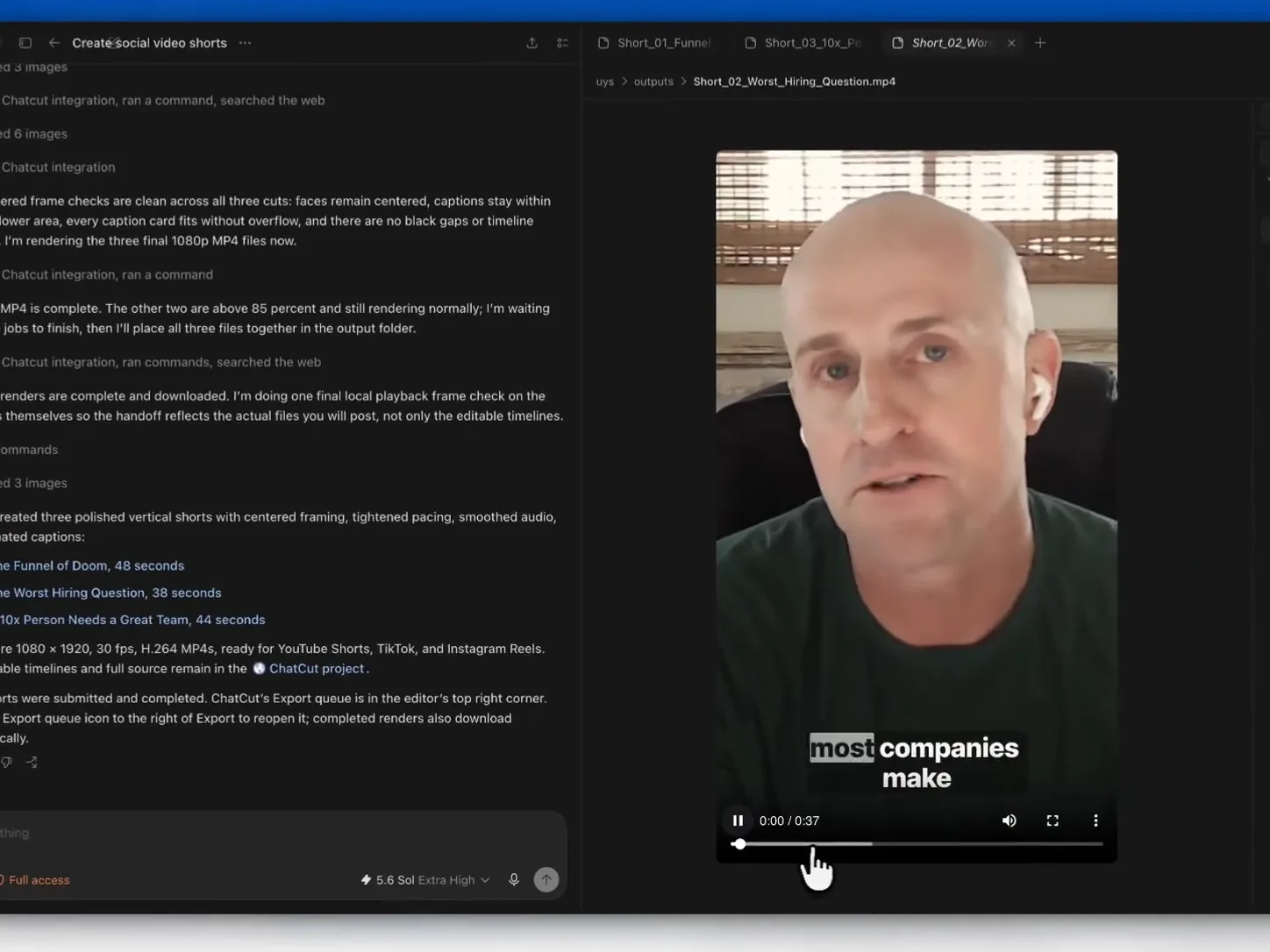
What it is: ChatCut is an agentic video editor. Instead of working on a timeline, you give it plain-language instructions and it executes the edit autonomously — silence removal, AI captions, reframing, B-roll, and export — across the full recording.
Key AI features:
-
Silence and filler word removal
-
Auto-captions with style options
-
Automatic reframing for vertical formats
-
B-roll insertion from plain-language description
-
Export to MP4 or XML for NLE import
Pros:
-
The entire edit runs through conversation
-
Free trial; no cost to test on a real project
Cons:
-
Beta status means features are still changing
-
Not suited for complex narrative editing that requires fine-grained timeline control
-
Limited to the editing capabilities the agentic model understands
What We Liked Best: You don’t need to know how to edit video to get a clean output. Describing the edit in plain language and watching it execute across a 40-minute recording in one pass is a different experience from anything else on this list.
Best for: Creators who want to hand off the mechanical editing work and focus on the content itself.
Pricing: Free (starter credits included), paid plans start from $25/month.
Best AI Video Editor for Reels
Reels have format-specific requirements that general-purpose editors handle poorly: vertical framing, trending caption styles, beat-synced cuts, and Instagram-ready export. The right tool handles all of those natively, not as an afterthought.
6. CapCut
What it is: CapCut is a free mobile-first video editor built by ByteDance, the same company behind TikTok. It covers the full short-form content workflow, from filming to export, without requiring desktop software.
Key AI features:
-
Auto-captions with style and font customization
-
AI background removal
-
Auto beat sync to music
-
Auto-reframe for vertical and square formats
-
Text-to-speech and AI voiceover
-
AI-generated effects and transitions
Pros:
-
Genuinely free
-
Auto-caption quality is among the best of any free tool
-
Templates are updated regularly to match current trends on TikTok and Instagram
Cons:
-
CapCut Pro locks some AI features behind a subscription
-
Less suited for long-form content and is built around clips under 10 minutes
-
Watermarked videos
-
Desktop version lags behind the mobile app on feature updates
What We Liked Best: The free tier covers auto-captions, reframing, and high-quality export. Most tools give you one of those for free. CapCut gives you all three.
Best for: Creators producing Reels, TikTok content, and short-form social video on a consistent schedule.
Pricing: Free. CapCut Pro at $9.99/month.
Best AI Video Editor for TikTok
TikTok content splits into two distinct workflows: ad production at volume and organic quick-turn posts. InVideo AI and Kapwing serve those two workflows differently: one generates from a script, the other edits existing footage fast.
7. InVideo AI
What it is: InVideo AI generates video from a text script or prompt. You describe what you want, and it produces a video with stock footage, voiceover, and on-screen text, without requiring filming or recording.
Key AI features:
-
Script-to-video generation from a text prompt
-
AI voiceover in multiple languages and voice styles
-
Auto scene selection from stock footage library
-
TikTok, Reels, and YouTube templates
-
Brand kit — custom colors, fonts, and logo applied across outputs
Pros:
-
Fastest path from a script to a publishable video for marketers producing volume content
-
Brand kit consistency means outputs match across a campaign without manual formatting
-
Supports 50+ languages for localized content
Cons:
-
Stock footage selection sometimes mismatches the script context
-
Not suited for content that needs to feel authentic or personal
-
Business plan is required to remove the watermark
What We Liked Best: Brand kit consistency. Once your colors, fonts, and logo are set, every output matches across a campaign without a manual formatting step, which matters when you’re producing video at volume.
Best for: Marketing teams producing TikTok ads, explainer videos, and promotional content at volume without a film crew.
Pricing: Free (with watermark), Plus $17/month, Max $85/month.
8. Kapwing
What it is: Kapwing is a browser-based video editor that covers the quick-edit workflows social media teams and individual creators use most for subtitles, resizing, trimming, and meme-style text overlays, without requiring an account for basic use.
Key AI features:
-
Smart Cut — AI silence and filler word removal
-
Auto-subtitles
-
AI background removal
-
Video resizing for all social formats
-
Smart resize — repositions content within the frame when changing aspect ratio
Pros:
-
No install and no account required for basic edits
-
Smart Cut is fast and accurate on talking-head content
-
Intuitive enough to use without any learning curve
Cons:
-
Watermark on free exports
-
Limited audio editing tools compared to Descript
-
Not suited for anything beyond short-form content
What We Liked Best: No account required for basic edits. It’s the lowest-friction entry point of any tool on this list. Upload your footage and edit without filling out any sign-up form..
Best for: Creators and social media managers who need a fast browser-based tool for quick edits, subtitle additions, and meme-style content.
Pricing: Free (10 credits), Pro $16/month, Business from $50/month.
Best AI Video Editor for Social Media and Ads
Ad creative for social media increasingly requires visuals that can’t be captured on camera, including AI-generated effects, motion extensions, and scene replacements. Runway is the only tool on this list built to generate that footage from a prompt rather than edit footage you already have.
9. Runway
What it is: Runway is an AI-first video platform that sits at the intersection of editing and AI video generation. It can remove backgrounds, apply motion effects, and generate entirely new video footage from a text prompt, all in the browser.
Key AI features:
-
Gen-4 text-to-video and image-to-video generation
-
Remove Background without green screen
-
Runway Aleph 2.0 for in-context video editing
-
Motion Brush lets you apply motion to specific areas of a static image
-
Act-One lets you do facial animation transfer from a reference video
-
Inpainting lets you remove or replace objects in existing footage
-
AI-generated sound effects and music
Pros:
-
The only tool on this list that generates original footage from a prompt
-
Inpainting and background removal are production-quality and can be used in commercial work
-
Available as an MCP server for ChatGPT and Claude
Cons:
-
Credits-based pricing; heavy use runs through a plan quickly
-
Generation quality varies; complex scenes require multiple attempts
-
Needs to be paired with another editor for complete projects
What We Liked Best: Inpainting. Removing or replacing objects in existing footage at production quality, without green screen or compositing software, is the capability that puts Runway in a different category from editing tools.
Best for: Ad creative teams and content creators who need AI-generated visuals, effects, or footage that can’t be captured on camera.
Pricing: Free (125 one-time credits), Standard $15/month, Pro $35/month.
Best Free AI Video Editor in 2026
Free AI video editing tools are split into two categories: tools that edit footage you’ve already shot, and tools that generate video without filming. DaVinci Resolve and Synthesia cover both, based on whether you have footage to edit or a script to turn into video.
10. DaVinci Resolve
What it is: DaVinci Resolve is a professional NLE with the most capable free tier of any editing software. It started as a color grading tool, which still is the best available in any editing software. It has expanded to cover full post-production including audio (Fairlight) and visual effects (Fusion).
Key AI features:
-
Magic Mask: AI-powered object and subject isolation directly on the timeline
-
Speed Warp: AI-powered frame interpolation for high-quality slow motion
-
Voice Isolation: separates voice from background noise in one click
-
Auto Color: AI-assisted color matching across clips
-
DaVinci Neural Engine powers all AI processing on-device
Pros:
-
The free version is a fully professional tool with no watermark
-
Color grading capabilities are ahead of every other NLE at any price
-
Runs on Linux, and is probably the only professional NLE that does
Cons:
-
Interface complexity is high and takes longer to learn than most tools on this list
-
Collaboration features and some noise reduction tools require the paid Studio version
-
GPU-intensive and requires a capable machine for smooth 4K performance
What We Liked Best: The free version has no watermark and no meaningful feature cap for most editing workflows. It’s more capable than the paid tiers of most tools on this list, at no cost.
Best for: Colorists, professional editors, and anyone who needs a professional-grade editing suite without a monthly subscription.
Pricing: Free. DaVinci Resolve Studio at $295 one-time.
11. Synthesia
What it is: Synthesia generates video using AI avatars. You type a script, pick an avatar, and Synthesia produces a presenter-style video without filming, recording, or on-camera talent.
Key AI features:
-
240+ AI avatars across languages, styles, and industries
-
Text-to-video in 140+ languages
-
Custom avatar creation from a short video recording
-
Screen recording and presentation overlay
-
Auto-generated closed captions
Pros:
-
No camera, microphone, or studio required; video production from a text document
-
140+ language support makes it the strongest tool for localized training or explainer content
-
Custom avatars mean brands can create a consistent on-screen presenter at scale
Cons:
-
AI avatars are identifiable as AI, which makes it not suitable for content that needs to feel human
-
Limited storytelling capability and works for structured informational content, not narrative video
-
Creator plan required for custom avatars and longer videos
What We Liked Best: 140+ language support with dubbed audio, not just subtitles. For teams producing localized training or explainer content across multiple markets, that’s a meaningful production time reduction.
Best for: Corporate training teams, HR departments, and educational content creators who need to produce structured presenter-style video at scale without on-camera resources.
Pricing: Free (10 minutes of video/month), Starter $29/month, Creator $89/month.
Best AI Video Editor for Mac
Both Final Cut Pro and Adobe Premiere Pro run natively on Apple Silicon, but they serve different workflows. Final Cut Pro is the stronger solo option; Premiere is the better choice if you collaborate with editors or clients on Windows.
12. Final Cut Pro
What it is: Final Cut Pro is Apple’s professional video editor, available exclusively on Mac. It’s built around a Magnetic Timeline that eliminates track-based editing — clips automatically fill gaps without manual adjustment.
Key AI features:
-
Smart Conform: auto-reframes footage for different aspect ratios using machine learning
-
Background Tasks: renders, transcodes, and exports in the background while you edit
-
Roles-based audio mixing: organizes dialogue, music, and effects automatically
-
Scene Removal: background removal for Mac M-series chips
Pros:
-
Optimized for Apple Silicon and renders faster on M-series Macs than any other NLE
-
One-time purchase with free updates indefinitely
-
Magnetic Timeline speeds up assembly edits significantly compared to track-based editing
Cons:
-
Mac-exclusive and has no Windows version, no collaboration with Windows-based teams
-
Less industry-standard than Premiere for broadcast deliverables
-
Plugin ecosystem is smaller than Premiere’s
What We Liked Best: Background rendering on Apple Silicon. Exports and transcodes run in the background while you keep editing on your Mac system; the performance gap over other NLEs is noticeable.
Best for: Mac-based creators and editors who work solo or within an Apple ecosystem team.
Pricing: $299.99 one-time purchase on the Mac App Store.
13. Adobe Premiere Pro
What it is: Adobe Premiere Pro is the industry-standard non-linear editor used across broadcast, film, and digital content production. Sensei AI features are built into the existing timeline workflow, and they don’t require a separate tool or interface.
Key AI features:
-
Auto Reframe: intelligently reframes footage for different aspect ratios
-
Speech to Text: generates captions and searchable transcripts
-
Scene Edit Detection: automatically finds cut points in existing edits
-
Generative Extend: AI Content-Aware Fill for video, extending clips beyond their original length
-
Remove Background: subject isolation without green screen
Pros:
-
Industry standard; output from Premiere is accepted by every broadcast and streaming platform
-
Deep integration with After Effects, Audition, and the broader Creative Cloud
-
Sensei features work inside existing workflows and need no new interface to learn
Cons:
-
Monthly subscription with no perpetual license option
-
Heavy on system resources; older machines struggle with 4K timelines
-
Steeper learning curve than any other tool on this list
What We Liked Best: Generative Extend, which is the AI Content-Aware Fill for video. Extending a clip beyond its original length to fix a tight edit used to require a reshoot. Now it’s a single operation on the timeline.
Best for: Professional editors and production teams working on content going to broadcast, streaming platforms, or high-production-value brand campaigns.
Pricing: $22.99/month (individual plan). Included in Creative Cloud All Apps at $69.99/month.
Best AI Video Editor for Beginners
Most professional editors started on a simpler tool before moving to a full NLE, and for good reason. A beginner’s first priority is finishing a video, not mastering a timeline, and the right tool removes the technical barrier without creating new ones.
14. Wondershare Filmora
What it is: Filmora is a consumer video editor aimed at beginners and hobbyists. The interface is simpler than a professional NLE, and most AI features are accessible through guided prompts rather than manual controls.
Key AI features:
-
AI Copilot: natural language assistant for basic editing tasks
-
AI Smart Cutout: subject isolation and background removal
-
Auto Beat Sync: matches cuts to music automatically
-
AI Denoise: background noise removal
-
AI Portrait: skin smoothing and portrait enhancement
-
Template library with trend-based presets
Pros:
-
Shortest path from raw footage to a finished export for someone with no editing background
-
Template library reduces decision fatigue on format and style
-
Mobile version syncs projects with desktop
Cons:
-
Annual plan still adds a watermark on the free tier; you pay to remove it
-
Limited export control compared to professional NLEs
-
AI features are surface-level; not suited for precise editorial work
What We Liked Best: The AI Copilot handles editing decisions that beginners don’t know how to make yet — where to cut, what transition fits, how to pace a section. It lowers the barrier without hiding the controls.
Best for: Beginners and hobbyists making their first videos who want AI to handle the technical decisions.
Pricing: Free (with watermark), advanced plan at $79.99, perpetual license at $99.99.
Best AI Video Editor for Post-Production
Professional post-production workflows often require a separate enhancement step after the main edit such as upscaling delivery files, recovering noisy footage, or preparing archival material for modern formats. Topaz Video AI handles that step at a quality level no built-in NLE tool currently matches.
15. Topaz Video AI
What it is: Topaz Video AI is a dedicated AI video enhancement tool. It processes existing footage to improve quality through upscaling, noise reduction, stabilization, and frame interpolation.
Key AI features:
-
Upscaling up to 16K resolution
-
Noise reduction and grain removal
-
Frame interpolation for high-quality slow motion
-
Deinterlacing for archival and broadcast footage
-
Video stabilization
Pros:
-
Upscaling quality consistently outperforms in-app upscaling in Premiere and DaVinci
-
Runs locally, no cloud processing, no usage credits
-
One-time purchase covers all future updates for that version
Cons:
-
Processing is slow on machines without a powerful GPU
-
One-time price is high compared to subscription tools
What We Liked Best: Upscaling consistency. Running older or lower-resolution footage through Topaz before delivery produces relatively better results.
Best for: Professional editors and archivists who need to enhance, upscale, or restore footage as part of a larger post-production workflow.
Pricing: Topaz studio at $69/month. Topaz studio pro at $799/year, billed annually.
How to Choose the Right AI Video Editor
-
If you edit YouTube long-form → OpusClip for repurposing, VEED for the main edit
-
If you edit long talking-head recordings → Descript
-
If you record podcast interviews → Riverside for recording, Descript or ChatCut for editing
-
If you want the editor to handle the edit for you → ChatCut
-
If you create Reels → CapCut
-
If you create TikTok content → InVideo AI for ads, Kapwing for organic
-
If you need AI-generated visuals for ad creative → Runway
-
If you need a free professional tool → DaVinci Resolve
-
If you’re a beginner → Filmora
-
If you’re on a Mac → Final Cut Pro; Premiere Pro if you work cross-platform
-
If you’re a professional editor → Adobe Premiere Pro for the full workflow, Topaz Video AI as an enhancement step
-
If you produce AI avatar corporate video → Synthesia
If you are new to AI video editing, learn about the video editing tips and basics before you pick any AI video editing tool.
Ready to Edit Videos on ChatCut?
With 15 tools across 11 use cases, the list can feel overwhelming, but most workflows narrow it down to one or two tools quickly. Start with your primary content format, match it to the relevant category above, and test the free tier before committing.
If you haven’t tried agentic editing yet, ChatCut is the lowest-friction place to start. It’s free, requires no video editing knowledge, and gives you a clear picture of how far AI editing has come in a single session.