Yes, when it is connected to a video editor that can work on the project. In my test, I used ChatGPT with ChatCut to turn one long talking head video into three short vertical videos. The workflow found the highlights, created the edits, added animated captions, reframed the speaker for a vertical screen, and exported the finished MP4 files.
ChatGPT did not do that work in an ordinary chat by itself. I gave it access to ChatCut, which handled the video, transcript, timelines, and exports.
First, connect ChatCut to ChatGPT
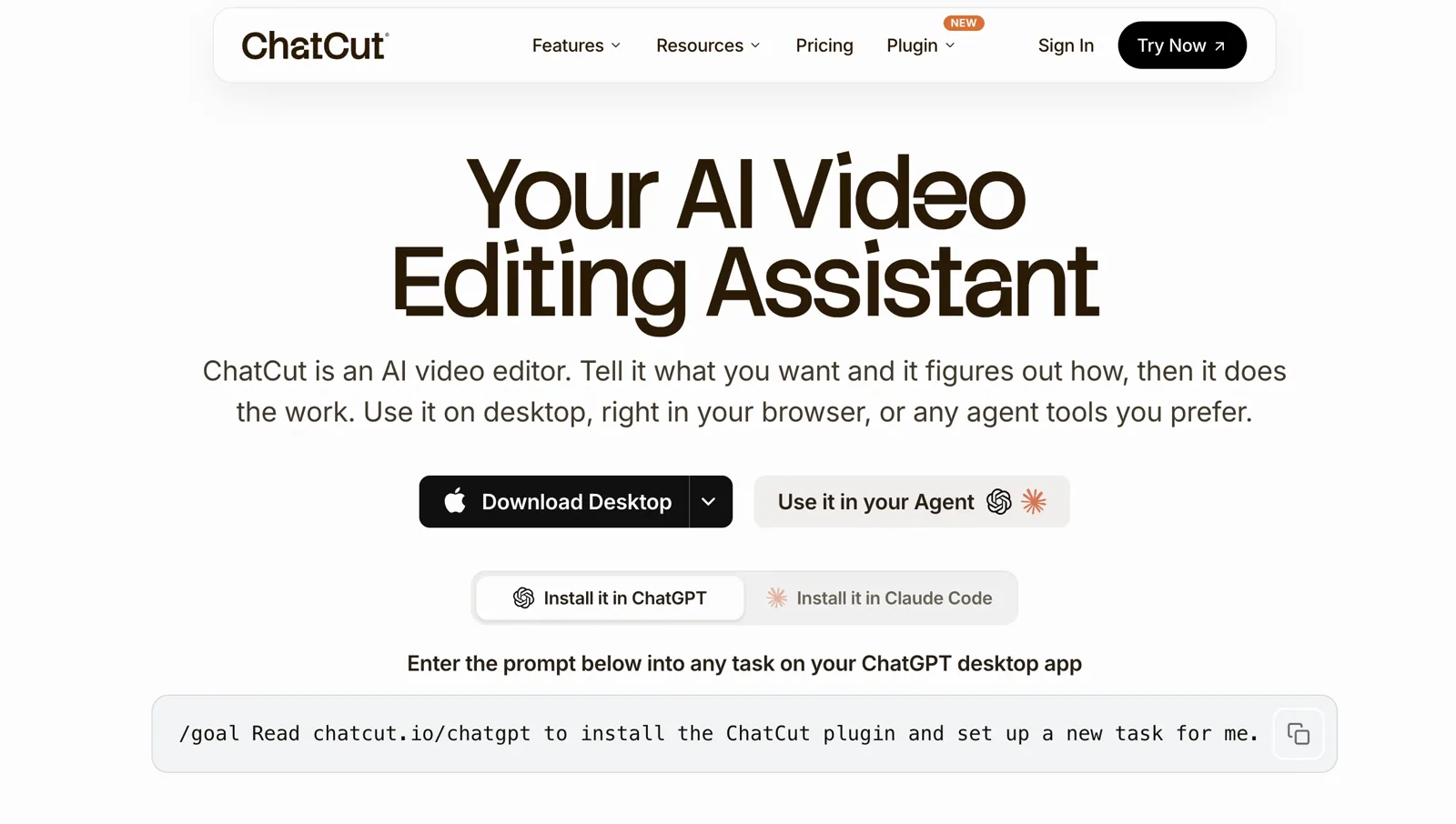
Before you attach a video, enter the prompt below into any task in the ChatGPT desktop app. This is the same setup prompt used on the ChatCut homepage. It installs the ChatCut plugin and creates a new task with the editing tools available.
Once the new task is ready, attach your video and describe the edit you want. The setup prompt above connects the tools. The editing prompt below tells ChatGPT what to make.
I also tested this setup prompt separately. ChatGPT recognized that the ChatCut plugin was already installed, created a project named My First ChatCut Video, and verified an empty editable timeline at 1920 × 1080 and 30 fps. The project opened in ChatCut through the built in browser after 2 minutes and 47 seconds. No source media had been added yet, so this was a clean connection check rather than the video editing test itself.
The original video I used
The source was an episode of Lenny’s Podcast. My test was simple: could ChatGPT find the strongest self contained highlights, turn them into vertical shorts, and add captions without me supplying timestamps or selecting the quotes first?
The surprising part was how little direction I gave it. This was my entire prompt:
I did not provide timestamps. I did not choose the quotes. I did not specify three clips, write titles, or describe the caption style. Nineteen minutes and 40 seconds later, I had three completed vertical videos:
| Video | Duration | Output |
|---|---|---|
| The Funnel of Doom | 48 seconds | 1080 × 1920, 30 fps, H.264 MP4 |
| The Worst Hiring Question | 38 seconds | 1080 × 1920, 30 fps, H.264 MP4 |
| A 10x Person Needs a Great Team | 44 seconds | 1080 × 1920, 30 fps, H.264 MP4 |
| Test detail | Value |
|---|---|
| Interface | ChatGPT desktop |
| Model shown in the recording | 5.6 Sol Extra High |
| ChatCut project | High Talent Density Shorts |
| Source | Lenny’s Podcast episode |
| Complete ChatGPT task time | 19 minutes and 40 seconds |
| Test date | August 22, 2026 |
The full source and editable timelines remained in the ChatCut project. That matters because I was not left with three flattened files and no way to change them.
This is what I now mean when I say ChatGPT can edit videos. It can understand the request and manage the work, while a connected video editor makes the actual changes.
The short answer
ChatGPT can edit videos when it is connected to an editor that can access the source media and apply changes. Without that connection, ChatGPT can suggest cuts, write an editing plan, or work from a transcript, but it is not changing the video project.
In this test, ChatGPT interpreted my request. ChatCut created the project, imported the video, transcribed it, found self contained highlights, built the vertical edits, added captions, rendered the files, and kept the timelines editable.
That distinction is more useful than saying ChatGPT either can or cannot edit video. The answer depends on what it can access.
What I asked ChatGPT to do
I started with a downloaded talking head video and attached it in ChatGPT. My goal was simple: find the strongest quotes and turn them into clips I could publish on YouTube Shorts, TikTok, and Instagram Reels.
I deliberately used a rough, ordinary prompt. I wanted to test the way someone would actually ask for help, not build a perfect demonstration around a long prompt template.
The prompt did contain three useful pieces of information:
- The source was one existing video.
- I wanted highlights and quotes rather than a general summary.
- The destination was short form social video.
Everything else was left open. ChatGPT and ChatCut had to decide how many clips to make, which ideas could stand alone, where each clip should begin and end, how to frame the speaker, and how to present the captions.
What happened after I pressed send
The task was more automatic than I expected, but it was not magic. I could see the major stages in the conversation.
ChatGPT connected to ChatCut
The first attempt revealed that the ChatCut editing tools were not available because I had not completed the sign in flow. ChatGPT opened the authorization page. I approved it once, returned to the same conversation, and the task continued without a new upload or a second editing prompt.
If you are setting this up for the first time, install the ChatCut plugin for ChatGPT and complete the account authorization before using a large source file.
ChatCut created the project and processed the source
ChatGPT created a new project named High Talent Density Shorts. ChatCut set the project to 1080 × 1920 for vertical video, imported the original source, and used transcription to map the spoken content.
The transcript was important. My request depended on finding complete quotes and ideas, not just motion or scene changes. Once the speech had a time reference, ChatCut could connect a sentence to the corresponding video range and build an editable clip from it.
The text based editing workflow is also what makes later review practical. I can compare the words with the timeline instead of guessing what happened inside a rendered file.
It selected three different highlights
The system did not return three arbitrary slices of the source. Each video centered on a distinct idea:
- The Funnel of Doom
- The Worst Hiring Question
- A 10x Person Needs a Great Team
The titles made the selection logic easy to understand. Each clip had a clear subject rather than a generic file name or a sentence cut off from its context.
This was the part I found most useful. Selecting a strong self contained moment is often more demanding than changing the aspect ratio or adding captions. In this run, ChatCut handled both the editorial selection and the mechanical work.
It built the vertical videos and added captions
The finished clips used centered vertical framing, tighter pacing, and animated captions. The captions were not a separate manual step in my prompt. ChatCut added them as part of preparing the shorts for social platforms.
The visible result was genuinely good. The speaker remained centered in the 9:16 frame, the text was easy to read, and the captions emphasized the words without taking over the screen. More importantly, the clips felt compact. They read as highlights, not as random excerpts from a longer file.
Automatic captions still need a final accuracy check. Names, numbers, and product terms are the places I would inspect first. The AI captions workflow remains editable, so a transcription mistake does not require a new render from scratch.
It exported and checked the files
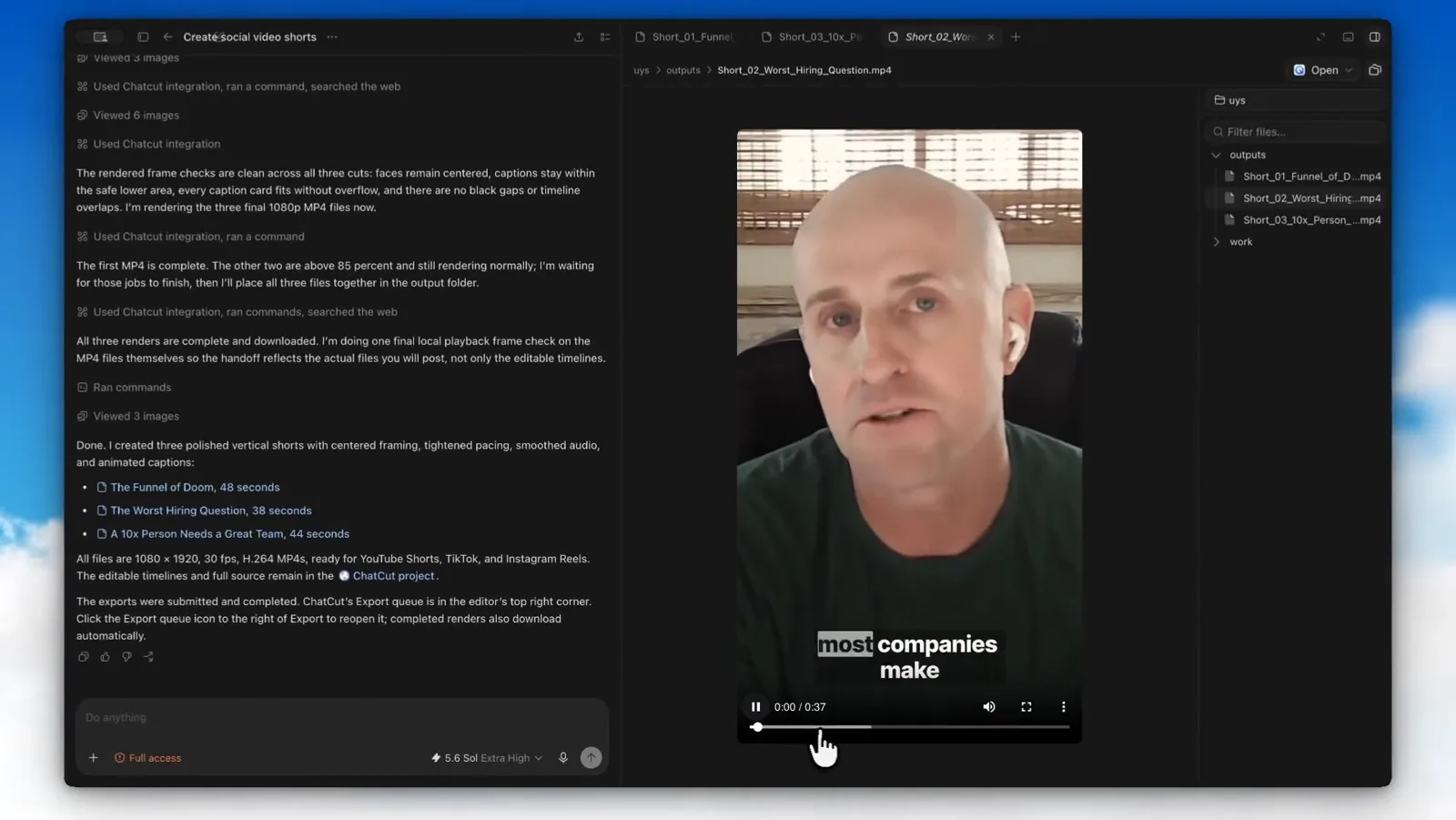
All three renders completed and downloaded. The final files were 1080 × 1920, 30 fps, H.264 MP4s, ready for YouTube Shorts, TikTok, and Instagram Reels.
ChatGPT also reported a final playback frame check on the downloaded MP4 files. That is better evidence than treating a completed render job as proof that the actual file plays correctly.
The screen recording gives a clearer view of all three clips and their captions, but it has no audio track. I am using it to demonstrate the visible editing result, not to independently verify the reported audio smoothing. I would check the three original exports before making that claim.
The ChatCut export guide covers the available video, audio, subtitle, and timeline formats.
See the broader ChatCut workflow
This test focused on one job: turning a long podcast episode into three vertical highlights. ChatCut can also use ChatGPT to work with editable timelines, transcripts, captions, motion graphics, and generated media inside a larger video project.
The short demonstration below shows that broader workflow and how ChatGPT can move from an editing request to work that remains adjustable in ChatCut.
How to edit a video with ChatGPT
To edit a video with ChatGPT, connect it to a video editor, provide the source and the result you want, review what it makes, then ask for any correction in plain language. I used ChatCut for this test, but ChatCut is the implementation in this walkthrough, not the definition of the task. For the full setup and prompts, follow our step-by-step guide to editing video with ChatGPT.
Connect ChatGPT to a video editor
Give ChatGPT permission to work on real media and an editable project. Without an editing connection it can only discuss footage.
Give it the source and the outcome
Attach the video or point at media already in the editor, then describe the finished result instead of configuring every option.
Review and ask for one clear correction
Play the first cut and say what looks wrong in plain language. No timeline commands required.
Keep refining in ChatGPT or the editor
Continue in conversation, or open the timeline directly. Export when the result holds up on playback.
1. Connect ChatGPT to a video editor
Choose an editor that gives ChatGPT permission to work on real media and an editable project. A normal ChatGPT task can discuss footage or suggest cuts. It cannot modify a timeline until an editing connection is available.
For ChatCut, enter the setup prompt shown earlier into the ChatGPT desktop app. Complete the plugin installation and account authorization, then continue in the new task where the editing tools are available.
The connection is ready when ChatGPT can create or open a real project and return a working editor link. In my test, it created an empty project and opened it beside the ChatGPT task.
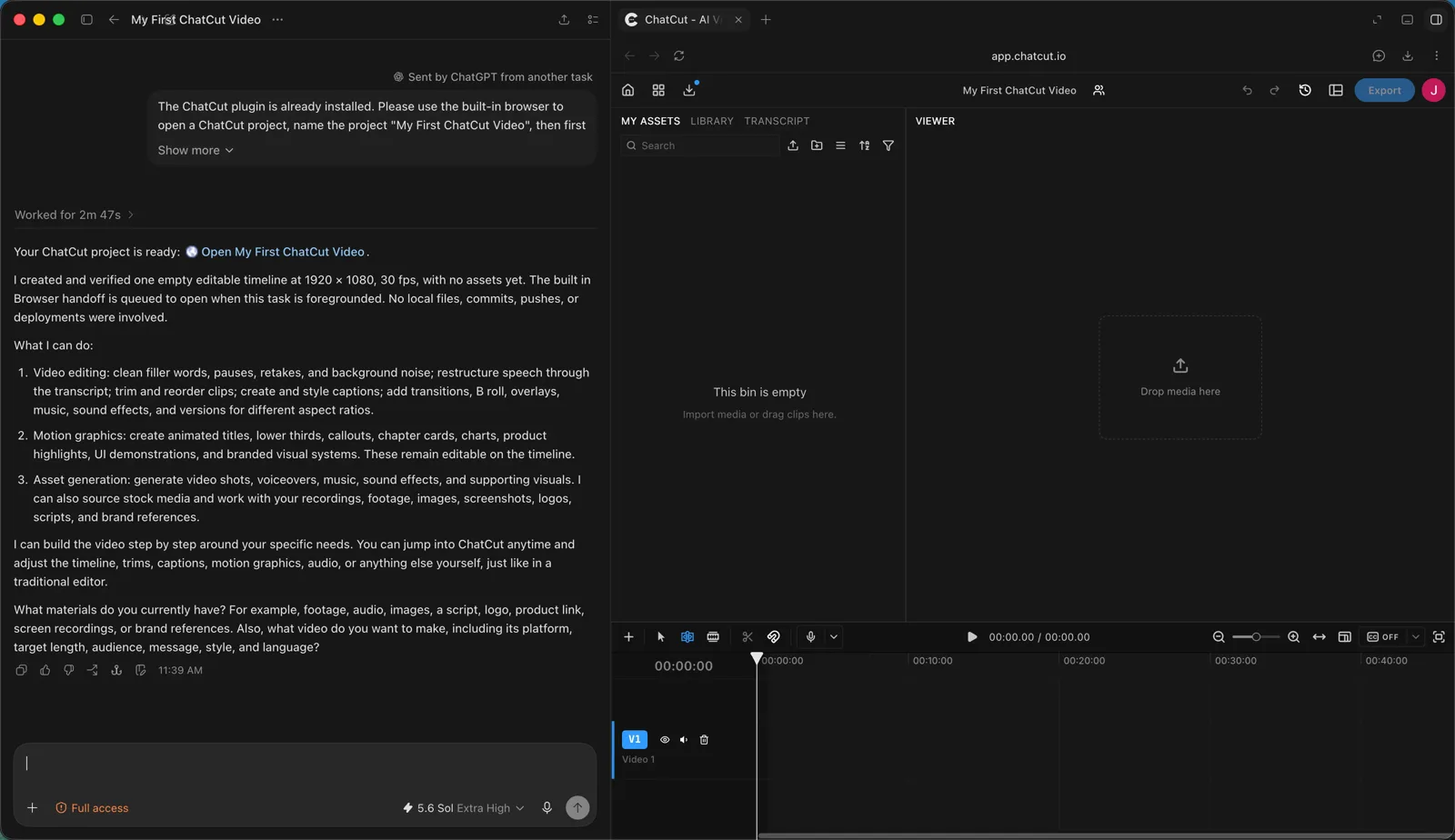
This screen shows both sides of the workflow. ChatGPT is where I describe the job. ChatCut is where the media, viewer, transcript, and timeline remain available for inspection and direct adjustment.
2. Give ChatGPT the source and the outcome
Attach the video, provide an accessible source link, or select media that is already in the editor. Then describe the finished result rather than configuring every editing option one by one.
This was enough for my test:
ChatCut handled the project setup, import, transcription, highlight selection, vertical timelines, audio polish, captions, framing, and first review state. It returned three different shorts. I did not supply timestamps, choose the quotes, design each caption, or build the timelines myself.
You can add a clip count, duration, audience, platform, style, or required moment when those details matter. They are useful controls, not mandatory setup steps. ChatCut can make the first pass naturally from the goal, and the result remains available in the editor if you want more control.
3. Review the result and ask for one clear correction
Play the first cut and say what looks wrong. You do not need to translate the problem into timeline commands.
In my second recording, ChatCut had already made three vertical shorts with animated captions. One split screen section in Short 03 cropped both speakers awkwardly. I wrote:
ChatCut replaced only that section with an editable top and bottom speaker layout. Both faces became fully visible, and the cuts, audio, captions, transitions, and duration stayed unchanged.
It then checked the entry frame, internal cut, exit frame, captions, and timeline structure. Every other section stayed as it was.
This was the moment the workflow felt complete to me. The first pass was already usable, and the correction was precise. More importantly, the revision did not force me to rebuild or reapprove the other videos.
4. Keep refining in ChatGPT or use the editor directly
Continue describing changes in ChatGPT whenever language is the easiest way to express them. You can ask it to correct a caption, change a crop, preserve a pause, replace one highlight, adjust audio, add B roll, or export another version.
You can also make the same kinds of adjustments directly in the ChatCut editor. The timeline, captions, media, audio, framing, and other controls remain available. Moving between conversation and the editing interface should feel natural, not like two disconnected workflows.
When the result is ready, ask ChatGPT to export the required format or use the Export control in ChatCut. Play the actual file and check the opening, ending, audio, captions, resolution, and duration before publishing.
What made this result feel different
I have seen many workflows described as ChatGPT video editing when ChatGPT only writes a script, suggests timestamps, or gives instructions for another app. That can still be useful, but it leaves the user to perform the edit.
This test crossed that line. The request started in ChatGPT and ended with completed video files. ChatCut handled the media operations in between.
The result also went beyond basic trimming:
| Job | What happened in this test |
|---|---|
| Understand the goal | Interpreted a rough request for social highlights |
| Find usable moments | Selected three distinct self contained ideas |
| Create the edits | Built three vertical timelines from the source |
| Reframe the speaker | Kept the talking head centered in 9:16 |
| Add captions | Created visible animated captions automatically |
| Export | Rendered and downloaded three H.264 MP4 files |
| Preserve control | Kept the source and editable timelines in ChatCut |
That combination is why the workflow felt complete. I was not copying timestamps into another editor or rebuilding a suggested cut by hand.
What this test proves, and what it does not
The recording gives me solid evidence for the following claims:
- A natural language request in ChatGPT triggered a real ChatCut workflow.
- ChatCut created a new project and imported the source.
- The workflow returned three named highlights.
- All three videos rendered and downloaded.
- The output specification was 1080 × 1920, 30 fps, H.264 MP4.
- The visible clip used centered vertical framing and animated captions.
- The task took 19 minutes and 40 seconds in ChatGPT.
- The completed response retained links to the editable ChatCut project.
It does not give me enough evidence to claim a universal time saving percentage. I did not record how long the same work would take manually. I also did not capture the source duration, upload time, transcription time, account cost, individual render times, or full audio playback in this screen recording.
Those missing measurements should stay missing until they are collected. A real result is more useful than an invented benchmark.
Not every AI video editor is a ChatGPT video editor
“AI video editing” and “video editing through ChatGPT” are not the same thing. An editor can provide its own conversational or automated features without giving ChatGPT access to the video project.
For example, Descript’s Underlord accepts editing requests inside Descript. OpusClip’s ClipAnything uses natural language prompts to find moments in a video. CapCut also provides AI editing features inside its own product. They can perform real editing tasks, but that does not prove ChatGPT can access or modify the project.
For “ChatGPT video editing” to mean an actual edit, I would look for four things:
- The connection can read the source media and relevant project state.
- It can write changes to the media or an editable timeline.
- It returns a result that the user can inspect and revise.
- It can export the result or return an editable project.
An API or MCP connection only describes a possible route between systems. The implementation, permissions, and available editing actions determine what it can actually do.
ChatCut is the connection I verified in this test. It worked with the source video, transcript, timelines, captions, alternate cuts, and exports. I am not treating every editor with AI features, or every theoretical API or MCP setup, as equivalent evidence.
Where this workflow fits best
I would start with videos where speech carries the structure. Interviews, podcasts, tutorials, courses, presentations, product demos, and talking head videos give ChatCut a transcript that can anchor the edits.
The workflow is also a natural fit when the goal is to turn one long video into short clips. A long recording may contain several self contained ideas, but finding and packaging them by hand takes repeated viewing, marking, reframing, captioning, and exporting.
I would use more caution with films, music videos, event recaps, documentaries, sports, gaming montages, or any project where the best moment is primarily visual. A transcript can explain what was said. It cannot fully explain why a glance, reaction, pause, camera move, or musical beat matters.
Video editing is not video generation
This test used an existing video. ChatCut selected ranges, changed the format, tightened the pacing, added captions, and exported new edits from that source.
AI video generation is a different job. It creates new footage from a prompt, image, audio file, or reference. A single project may use both, but the search intent and the production risks are different. The comparison in AI Video Editor vs. AI Video Generator explains when each workflow fits.
What other users are asking in 2026
The recent discussion around ChatGPT video editing is more practical than the older advice about asking ChatGPT to write a script. People want to know whether ChatGPT can touch the media, whether the result remains editable, whether the selected clips are genuinely good, what happens when a cut is wrong, and how much the workflow costs.
I reviewed about 50 results across five YouTube query groups, examined 11 YouTube videos and the first batch of 170 popular comments, examined 11 Bilibili videos across seven query groups, and read two detailed Reddit excerpts through search indexes.
That sample identifies recurring questions, but it is not a representative survey of everyone searching for ChatGPT video editing. The comments have not been coded into exclusive intent categories, so I am not presenting a percentage chart as measured search demand.
Two examples help explain the current interest. A community DaVinci Resolve demonstration from 2026 uses ChatGPT and an MCP workflow to build a string out. It is evidence of a custom workflow, not an official DaVinci Resolve integration. A Codex workflow on Bilibili prompted questions about using a creator’s own media, revision rounds, and cost.
Those questions reinforce the reason to show the prompt, the result, and the editable project rather than publish only a polished final clip.
Final verdict
ChatGPT can edit videos when it has a real editing connection. In my test, one rough request produced three distinct vertical highlights with animated captions and completed H.264 exports. The entire ChatGPT task took 19 minutes and 40 seconds, and the source and editable timelines remained in ChatCut.
The result was not merely functional. It was good enough to make the workflow feel useful. The clips were compact, the ideas were distinct, the framing worked, and the captions looked ready for short form video after a normal accuracy review.
I would still review every cut and play every exported file. But I would no longer describe ChatGPT as a tool that can only suggest how to edit a video. With ChatCut connected, it can carry the request through to actual editable timelines and finished files.